Instagram Archive Photos: A Complete 2026 Guide
 Elitza Vasileva

You're probably here because your Instagram grid no longer matches the work you want people to see.
Maybe you posted event photos that felt right at the time, but now they clutter a cleaner portfolio. Maybe an old campaign ended months ago, yet the post still sits near the top of your profile because it performed well. Or maybe you want to tidy your feed without losing comments, likes, and the history attached to the post.
That's exactly what Instagram archive photos are for. Used well, archiving helps you edit your public profile without throwing away content you may want later. Used poorly, it creates confusion, especially when you can't find a post, restore the wrong item, or wonder why your profile count looks off.
Table of Contents
- The Critical Difference Between Archiving and Deleting
- How to Archive and Unarchive Your Instagram Photos
- Finding and Managing Your Full Instagram Archive
- Troubleshooting Common Instagram Archive Issues
- Strategic Archiving for Creators and Professionals
The Critical Difference Between Archiving and Deleting
It's easy to mix up archiving and deleting because both actions remove a photo from your visible grid. The result looks similar from the outside. The consequence is not.
Instagram introduced its archive feature in 2017, which changed how users manage visibility without permanent deletion, and unlike deleting, which triggers a 30-day temporary retention period before permanent removal, archiving lets you restore a post to its original grid position instantly with one tap, according to this Instagram archive guide.
Key takeaway: Archive hides a post and keeps it recoverable. Delete starts the clock toward permanent removal.
Here's the practical comparison:
| Action | What happens publicly | What happens privately | Best use |
|---|---|---|---|
| Archive | The photo disappears from your profile | You keep access to it inside Archive | Feed cleanup, rebrands, temporary hiding |
| Delete | The photo disappears from your profile | Removal becomes permanent after the retention window | Duplicate uploads, clear mistakes, content you never want back |
For creators, this distinction matters because your Instagram profile isn't just a scrapbook. It's often a storefront, portfolio, or credibility layer. If a post no longer fits your current positioning, archiving is usually the safer move.
That's also why I treat archive as a visibility control, not a storage shortcut. If you care about how Instagram reads a post over time, it helps to understand the underlying social media metadata attached to content, because visibility and deletion aren't the same action even when the grid looks cleaner afterward.
What works and what doesn't
What works
- Hiding seasonal content: Holiday promos, event announcements, and limited campaigns can leave the grid without being lost.
- Cleaning up a rebrand: Old colors, offers, or visual styles can come down fast.
- Protecting options: You can bring the post back if you change your mind.
What doesn't
- Deleting too quickly: If you're reacting emotionally to a low-performing post, deletion can be harder to undo.
- Using archive as a backup system: Archive is about visibility management, not long-term asset control.
- Assuming both actions are equal: They aren't. One is reversible in-app. The other is a path toward permanent loss.
How to Archive and Unarchive Your Instagram Photos
The mechanics are simple. The value comes from knowing exactly what happens after you tap.
When a user archives a post, it's removed from the public timeline immediately, and when they use Show on Profile, Instagram restores it to its exact original position on the grid, as explained in this Sked Social overview of Instagram archiving.
Start with the basic flow:
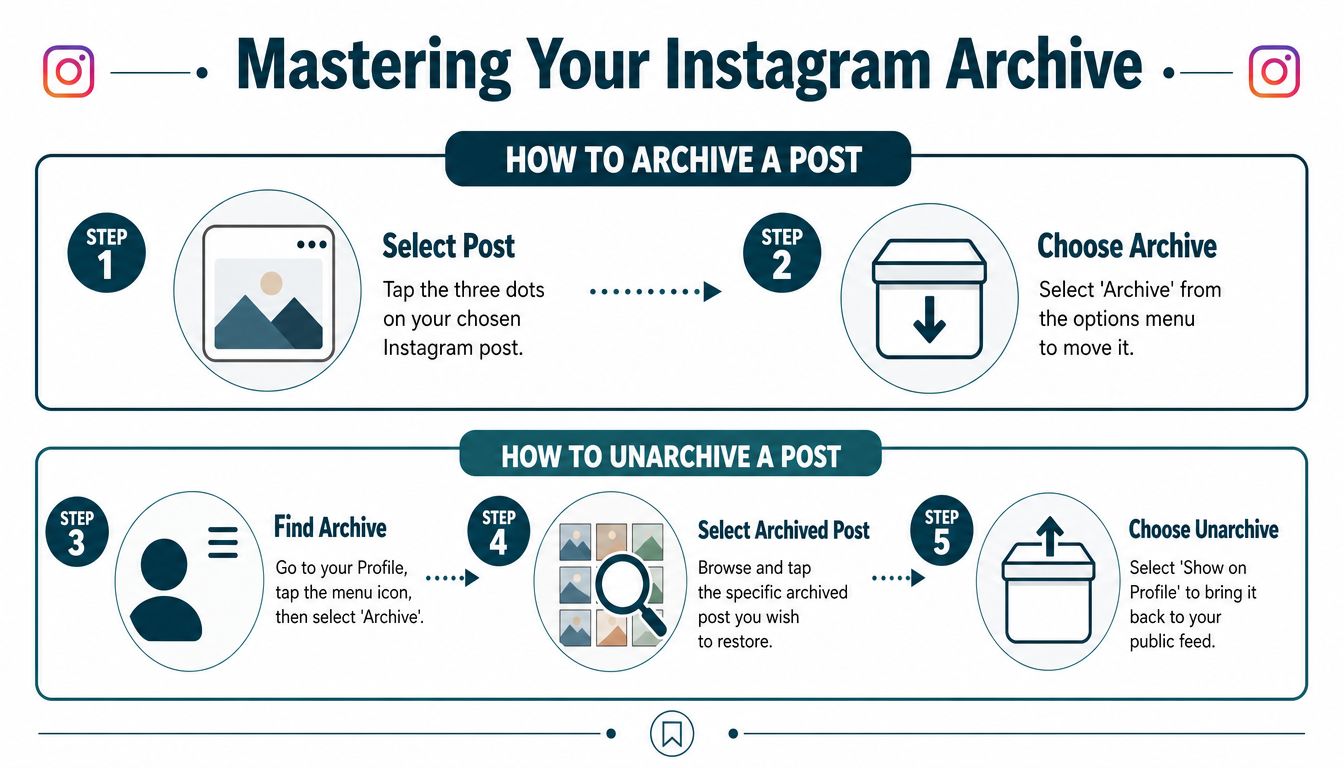
Archive a photo on iPhone and Android
The process is nearly identical on iPhone and Android.
- Open Instagram and go to your profile.
- Tap the photo you want to hide.
- Tap the three-dot menu on the post.
- Select Archive.
The post disappears from your public grid right away. Followers and profile visitors won't see it on your timeline.
A few practical notes matter here:
- Choose carefully: Archive is fast, which makes it easy to clean up a feed in minutes. It also makes it easy to hide the wrong post if you're moving too quickly.
- Check the caption before archiving: If you plan to reuse the post later, make sure the caption still reflects your current brand or offer.
- Think in batches: If you're curating your grid for a launch, review old content category by category instead of archiving randomly.
Here's a video walkthrough if you prefer to follow visually:
If a photo is merely off-brand, archive it. If it's incorrect, duplicated, or something you never want associated with your account again, consider deletion instead.
Unarchive a photo and return it to your grid
Restoring a post is just as straightforward.
- Go to your profile.
- Tap the menu icon in the top corner.
- Open Archive.
- Find the archived post you want back.
- Tap the post.
- Tap the three-dot menu.
- Choose Show on Profile.
The post returns to the grid in its original chronological position. That detail matters because it preserves the shape of your feed instead of reposting the image as if it were new.
That makes unarchiving useful when you're rotating campaign assets, restoring client work after a temporary cleanup, or bringing back a post that fits your current direction again.
What about Instagram on desktop
Desktop is where people often expect full account control and then hit limitations. Instagram's mobile app remains the clearest place to manage archive actions.
If you mainly work from a browser, use desktop for reviewing your profile and planning your curation. Then switch to the mobile app for the actual archive and unarchive action. That's usually faster than hunting through a partial interface and second-guessing whether you're looking in the right menu.
A simple working routine helps:
- Audit on desktop: Look at your grid with fresh eyes on a larger screen.
- Act on mobile: Archive or restore posts inside the app.
- Recheck the profile view: Confirm the grid still tells the story you want a new visitor to see.
Finding and Managing Your Full Instagram Archive
Once you archive a post, it doesn't vanish into some vague hidden folder. Instagram keeps archived content inside distinct archive areas, and that separation matters because many users look in the wrong place and assume a post is gone.
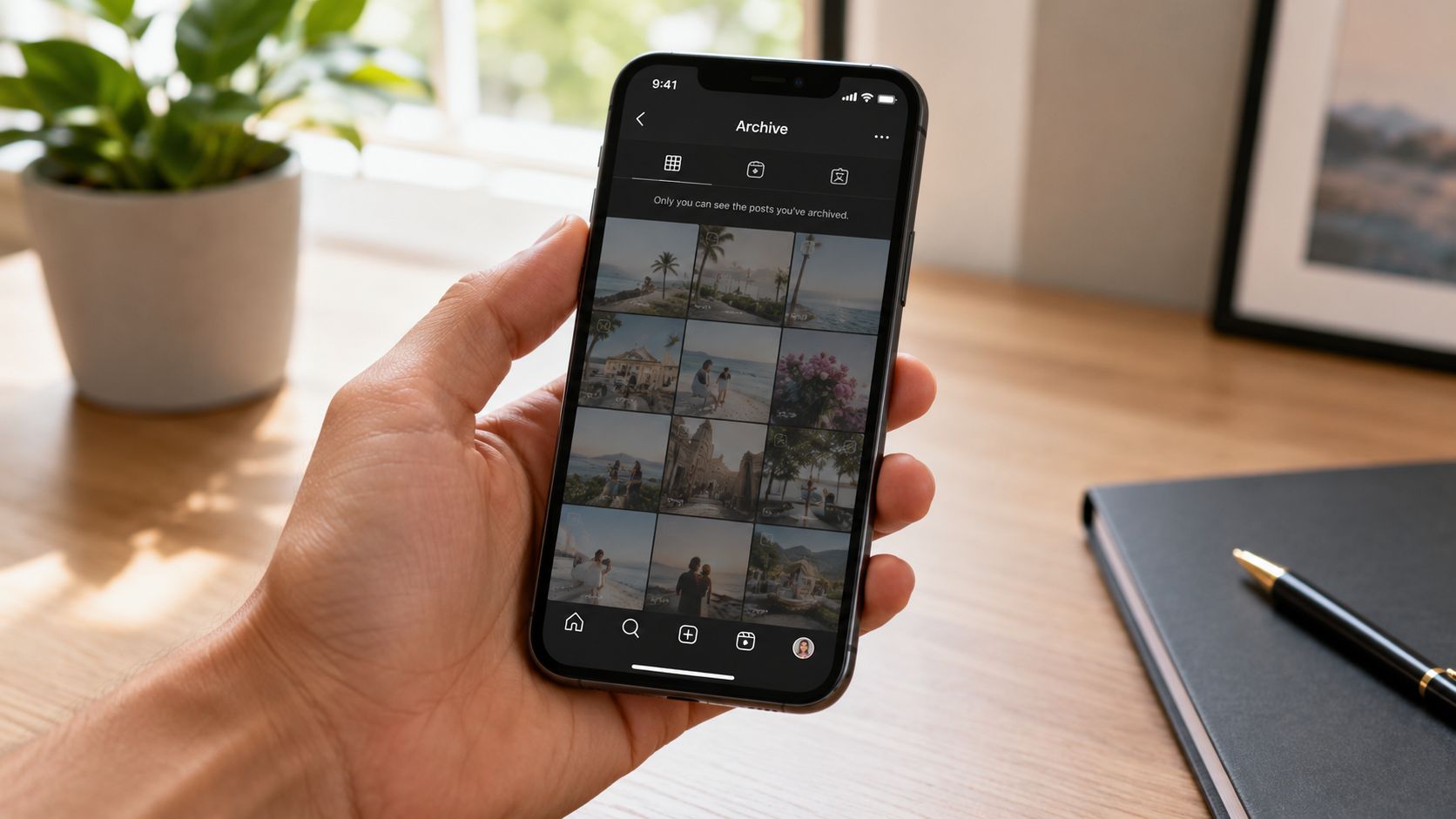
Open your profile, tap the menu icon, then choose Archive. From there, pay attention to the dropdown. Instagram separates archived material by type.
If you also want your website or portfolio to reflect only your current public work, this guide on how to embed an Instagram feed on your website is useful because it helps you think about what should stay visible beyond Instagram too.
Posts Archive
This is the section commonly understood when Instagram archive photos are discussed.
Use Posts Archive when you want to:
- Hide feed posts: Remove photos from public view without deleting them.
- Review past grid decisions: Revisit content you pulled during a rebrand or cleanup.
- Restore selectively: Bring back only the pieces that still support your positioning.
Posts Archive is best treated like a private edit room. Don't dump content there and forget it. Revisit it occasionally and ask whether each hidden post is worth restoring, repurposing, or leaving hidden.
Stories Archive
Instagram's archive isn't limited to feed posts. It also includes expired Stories, which are automatically saved after their 24-hour lifespan if that setting is enabled, as noted in the earlier referenced archive guidance.
That makes Stories Archive valuable for creators who publish behind-the-scenes content, launch moments, Q&As, event coverage, or temporary offers. A story may be short-lived in public, but it can still be useful later for Highlights, recap content, or proof of activity.
Practical rule: Stories often age better as proof than as promotion. Keep the useful ones available privately even when they no longer belong front and center.
Live Archive
Live Archive is where Instagram stores your Live broadcasts within the archive system.
This category trips people up because the archive dropdown can switch between content types. If you enter Archive expecting a hidden photo and land in Live Archive instead, it can look like your post disappeared or was never archived at all.
A clean way to manage the full archive is to treat it like three shelves:
- Posts Archive for grid control
- Stories Archive for reusable moments
- Live Archive for longer-form sessions
That distinction saves time and prevents one of the most common archive mistakes: looking in the wrong section and assuming Instagram failed.
Troubleshooting Common Instagram Archive Issues
Archive usually works cleanly. The frustration comes from edge cases that basic tutorials skip.
The most common one is the invisible count problem. Users have reported archiving multiple posts and still seeing their old public post count remain on the profile, which raises doubts about whether archiving worked or whether the count is cached, according to this Business Insider explanation of the Instagram archive issue.

Why didn't my post count change
If your count looks unchanged after archiving, don't assume the action failed.
Check the grid itself first. If the photo is gone from public view, the archive action likely worked. The count display can lag behind what you see on the grid.
Try this:
- Refresh the app: Close and reopen Instagram.
- View from another account: Confirm whether the post is visible publicly.
- Wait before making more changes: Repeatedly archiving and restoring can make troubleshooting harder.
Why can't I find the Archive option
This usually comes down to tapping in the wrong place or working too quickly.
On a feed post, the archive action is inside the three-dot menu for that specific post. If you're browsing profile settings instead of the post menu, you won't see the same options.
A practical fix is to go directly to the post first, then use its menu. Don't start from the main settings screen unless you're trying to access the archive library itself.
Why am I seeing the wrong archive type
Instagram's dropdown inside Archive can show Posts, Stories, or Live. If you expect one and see another, it feels like content is missing when it isn't.
Use this quick check:
| Problem | Likely cause | Fix |
|---|---|---|
| Can't find archived photo | You're in Stories or Live Archive | Switch the archive dropdown |
| Can't restore a grid post | You opened the wrong archived item type | Return to Posts Archive |
| Archive feels empty | You archived less than you thought, or checked the wrong section | Review each archive type one by one |
One more detail catches professionals off guard. If you restore content, pay attention to how it appears publicly again, especially if the original content had reused audio, remix connections, tags, or collaboration context. Before restoring in bulk, test with one post and verify the public result.
Strategic Archiving for Creators and Professionals
A lot of archive advice stops at button clicks. That's not where the true value is.
The hard question is timing. One underserved issue in archive guidance is deciding how long a post should stay visible before it becomes irrelevant enough to hide. Tutorials rarely give a concrete timeline, and that's why many creators rely on instinct. At the same time, one source argues archiving is the best content curation strategy and says it has 95%+ adoption among creators managing dynamic feeds, because it preserves data integrity while allowing flexible feed management, according to Jenn's Trends on archiving Instagram posts.
When a post should stay public
Keep a post live when it still does one of these jobs well:
- Represents your current brand: The visual style, message, and offer still match what you do now.
- Answers a buyer question: Testimonials, process explainers, signature work, and strong examples still help conversion.
- Signals credibility: Speaking clips, press moments, launches, and polished case-style content often earn a long shelf life.
A useful filter is simple. If a new visitor lands on your profile today, does that post help them understand your work faster? If yes, leave it.
When archiving is the better move
Archive when the post is still valid history but no longer useful front-facing content.
That often includes:
- Seasonal campaigns: Holiday offers, event announcements, countdowns, and temporary promos.
- Old positioning: Services you no longer provide, visual identities you've moved past, outdated bios in graphics.
- Portfolio clutter: Good work that no longer belongs in your top public selection.
I've seen this matter most during rebrands. Creators often think they need to wipe half their feed. Usually they don't. They need to remove friction. Archiving lets them reduce visual noise without losing the original asset.
Archive by relevance, not by age. A two-year-old post can still earn its place. A two-week-old post can already be dead weight.
If you're trying to understand visibility decisions more broadly, especially how content gets distributed and surfaced, this guide that helps simplify Instagram algorithms for church social media is useful beyond churches. It explains the platform logic in a way that also helps creators decide what deserves long-term grid space.
How archived content becomes portfolio material
Instagram archive photos transition into a role beyond mere cleanup.
An archived post may be wrong for your feed but perfect for a portfolio, pitch deck, client proof page, or link-in-bio destination. A campaign recap might be too niche for your public grid now. It can still support a freelance proposal. Old event photography may not fit your current aesthetic. It can still show range.
Use a simple three-bucket review when you archive:
Hide and forget
Content that served its purpose and doesn't need another job.Hide and reuse
Posts with useful visuals, social proof, or examples that belong in a portfolio or media kit.Hide and restore later
Seasonal or campaign-based posts that may come back.
That's also why many creators eventually separate their Instagram feed from their professional showcase. Your grid needs consistency. Your portfolio needs range, context, and control. Those are different jobs.
If you're building that second layer, it helps to compare your options for a cleaner hub, which is why this roundup of the best link in bio tools is a practical next step.
If your Instagram feed needs to stay curated but your best work still deserves a home, own.page gives you a simple way to turn hidden or selective content into a cleaner portfolio, homepage, or link-in-bio. You can showcase the right projects, embed media, and present your work on your terms instead of forcing every useful asset to stay on your public grid.
Free tools · no sign-up